How to use the wishlist
By Rory at Estate Sale Zone · Published
Open Wishlist at the top of the page, type what you're hunting for (“Pyrex”, “teak dresser”) and tap Add. When a new sale mentions it, we email you and say which item it matched.
The Paid plan. On a free account the page explains the plan; anything you'd already added is kept.
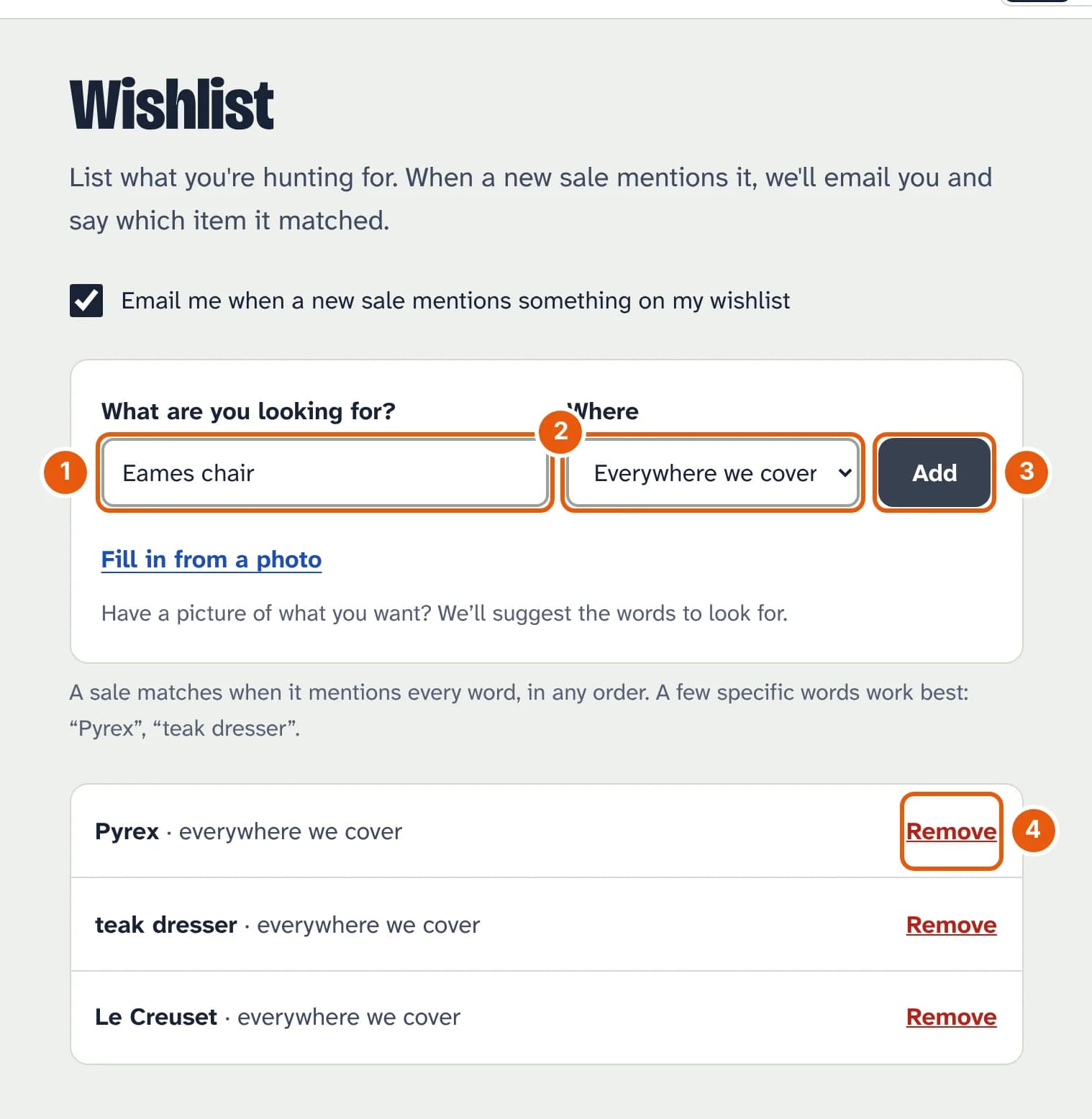
- What are you looking for? A few specific words work best. A sale matches when its title or description has every word, in any order.
- Where: everywhere we cover, or one area.
- Add it. You can keep up to 50 things.
- Remove one when you've found it.
Have a picture of what you want? Fill in from a photo suggests the words to look for; check them, change them if you like, then tap Add. It counts as one of your daily photo checks, and we don't keep the photo.
The emails
We check after every update of the listings, and after anyone posts a sale on the site. One email covers every new match, up to 15 sales, and only sales added after the item went on your list. To stop them, untick Email me when a new sale mentions something on my wishlist, or use the link in any of the emails.