How to find sales near you
By Rory at Estate Sale Zone · Published
Open the home page, tap Use my location or enter your ZIP code, and choose when you want to go: the sales within 15 miles show as a list and on a map. You don't need an account to browse.
Anyone, no account needed. Saving a search or your usual filters takes a free account.
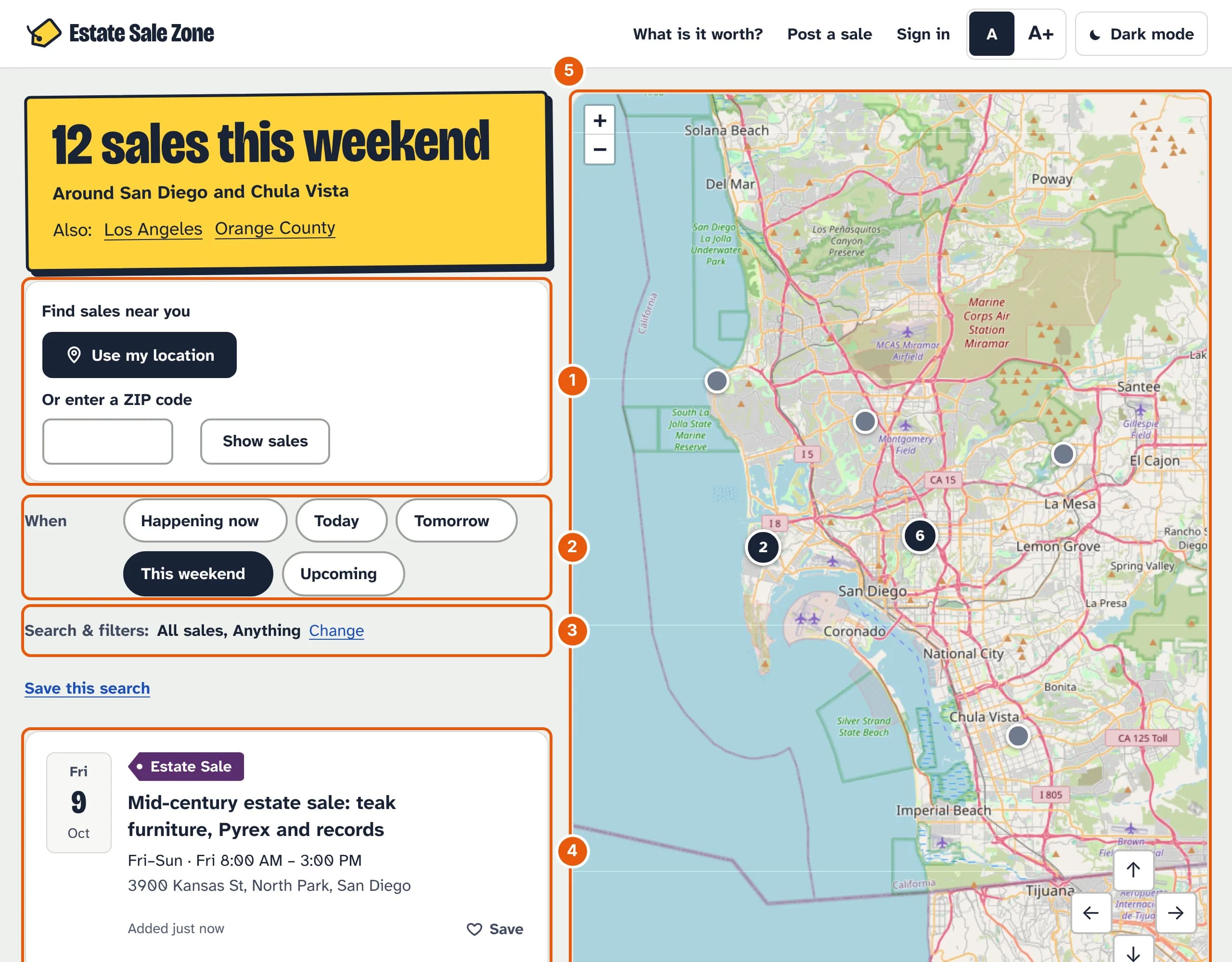
- Find sales near you. Tap Use my location (your browser asks first), or type a ZIP code and tap Show sales. Without either, you see the whole area: San Diego, Los Angeles or Orange County.
- When. Happening now is the default. This weekend is Saturday and Sunday, Upcoming is the next 30 days, and all times are Pacific.
- Search & filters shows what you've chosen; tap Change to search for something or narrow the list (below).
- Each sale: its date, the kind of sale, its hours and where it is. Tap it for the full details.
- The map shows the same sales. Numbered circles are several sales close together; tap one to zoom in.
Search for something in particular
Tap Change next to Search & filters, type what you're after in Looking for something in particular?, and tap Search. A sale matches when its title or description has every word you typed, in any order.
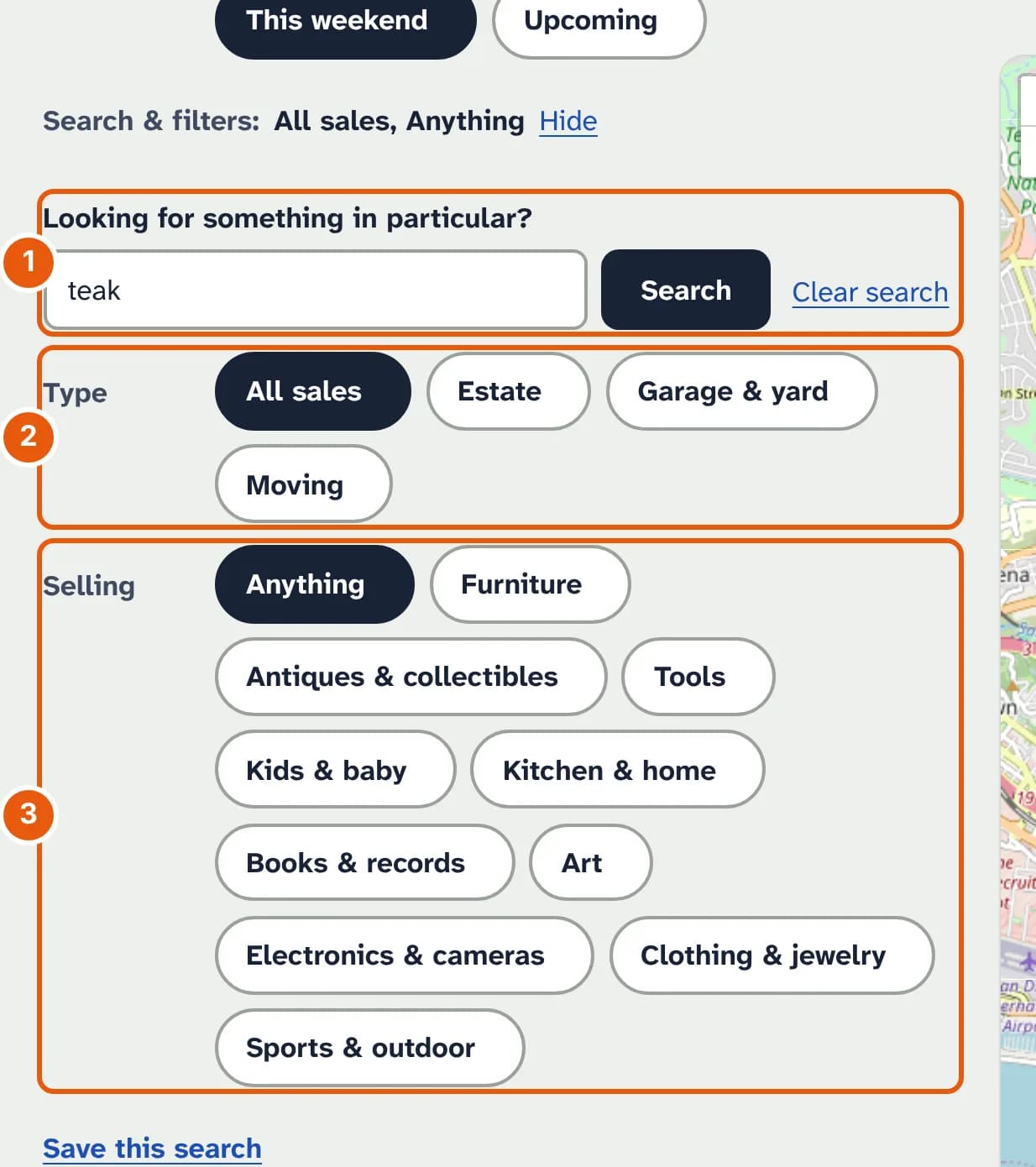
- The search box. Clear search takes the words off again.
- Type: estate sales, garage and yard sales, or moving sales.
- Selling: sales with furniture, tools, kids' things, books and records, and so on.
Choose how far you'll drive
Once you've given your location or a ZIP code, the filters also have distance and sort order, and the list shows how far away each sale is.
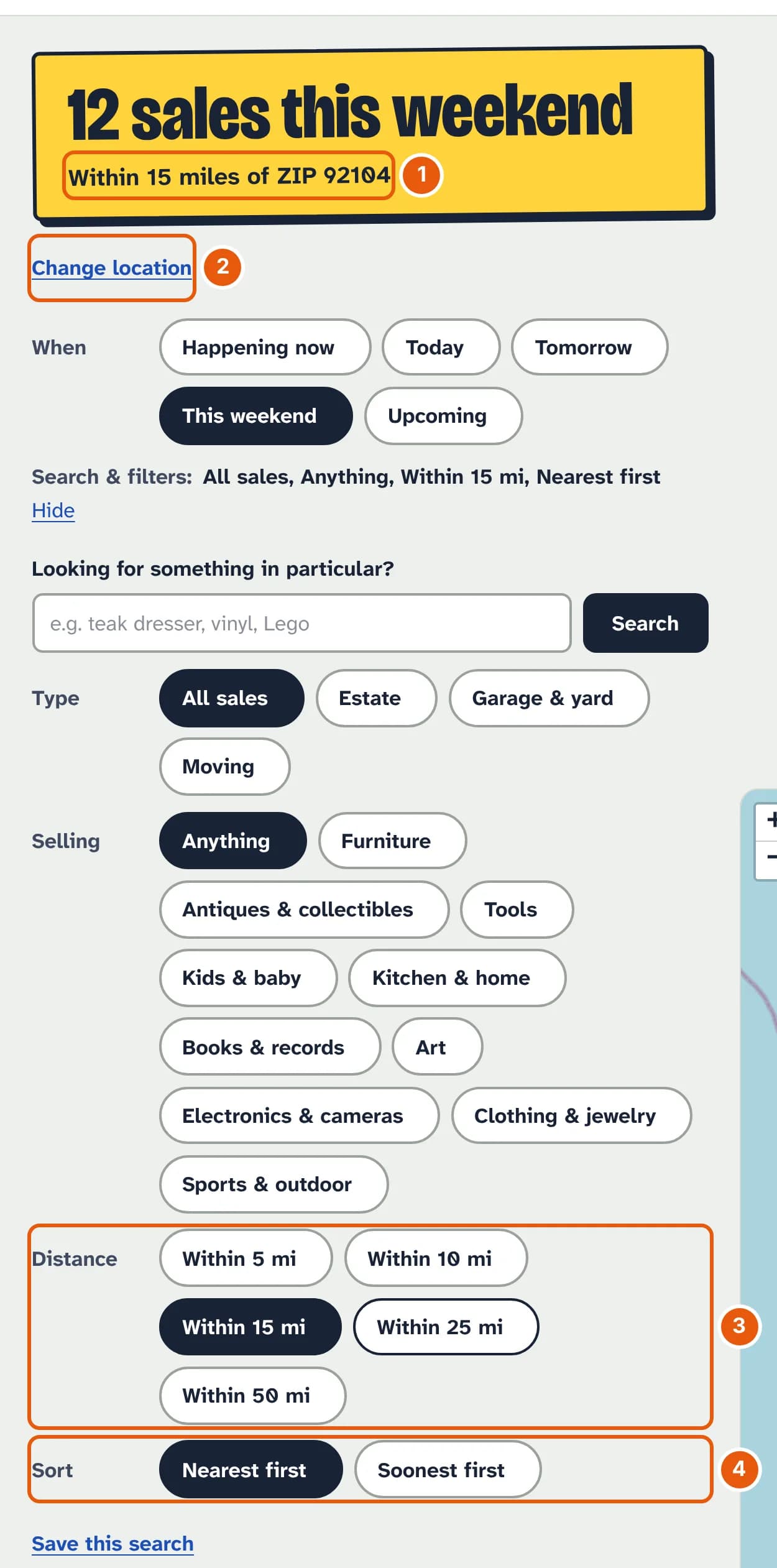
- The place you're searching from.
- Change location to search somewhere else, or go back to the whole area.
- Distance: from 5 to 50 miles. 15 is where it starts.
- Sort: nearest first, or soonest first.
If nothing is on within your distance, the list shows the closest sales further out instead of an empty page. Your location stays in the page's address; we don't keep it.
On a phone
The list and the map take turns on a small screen. The buttons at the bottom switch between them, and the map keeps your filters.
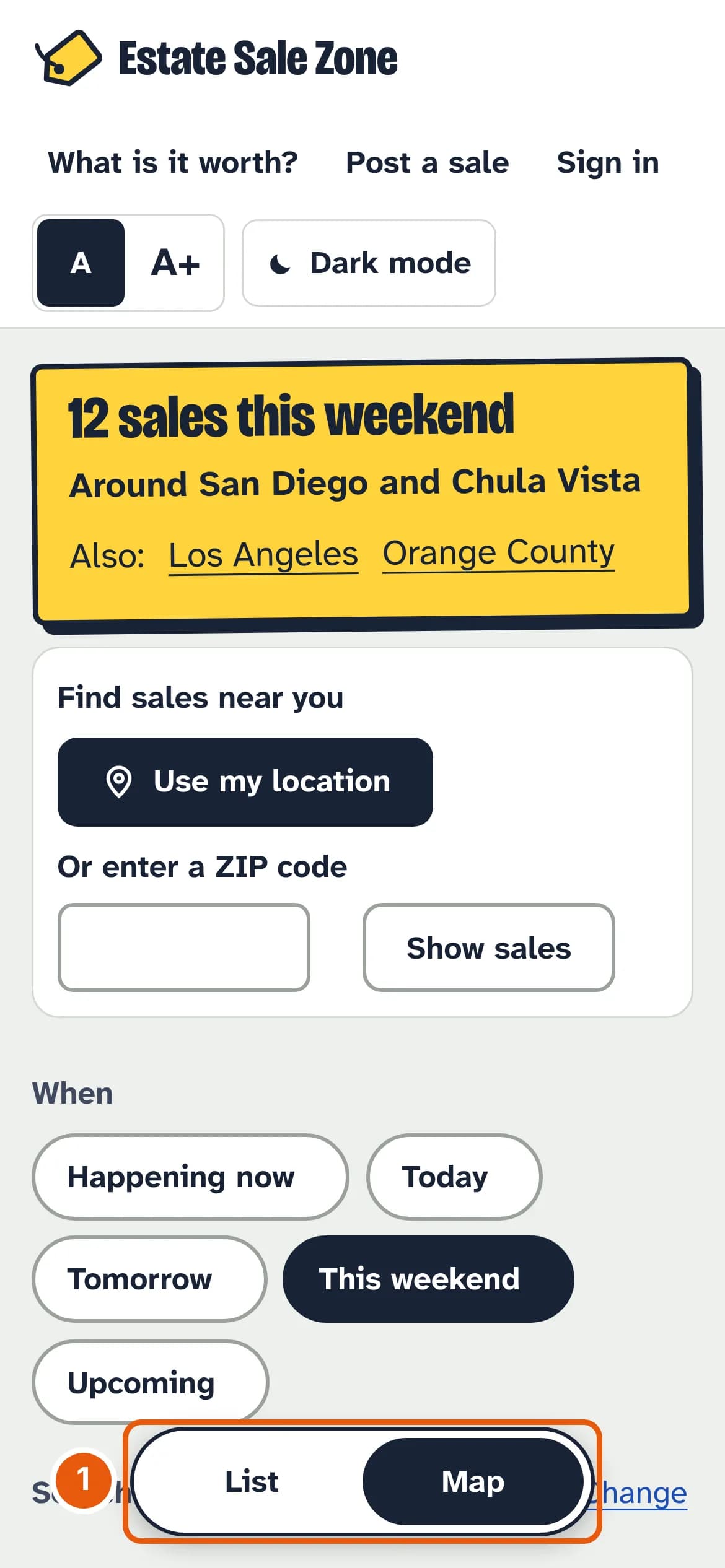
- List or Map.
What's on a sale's page
Tap a sale to see each day with its hours, the address, the description, photos and a map, and these buttons:
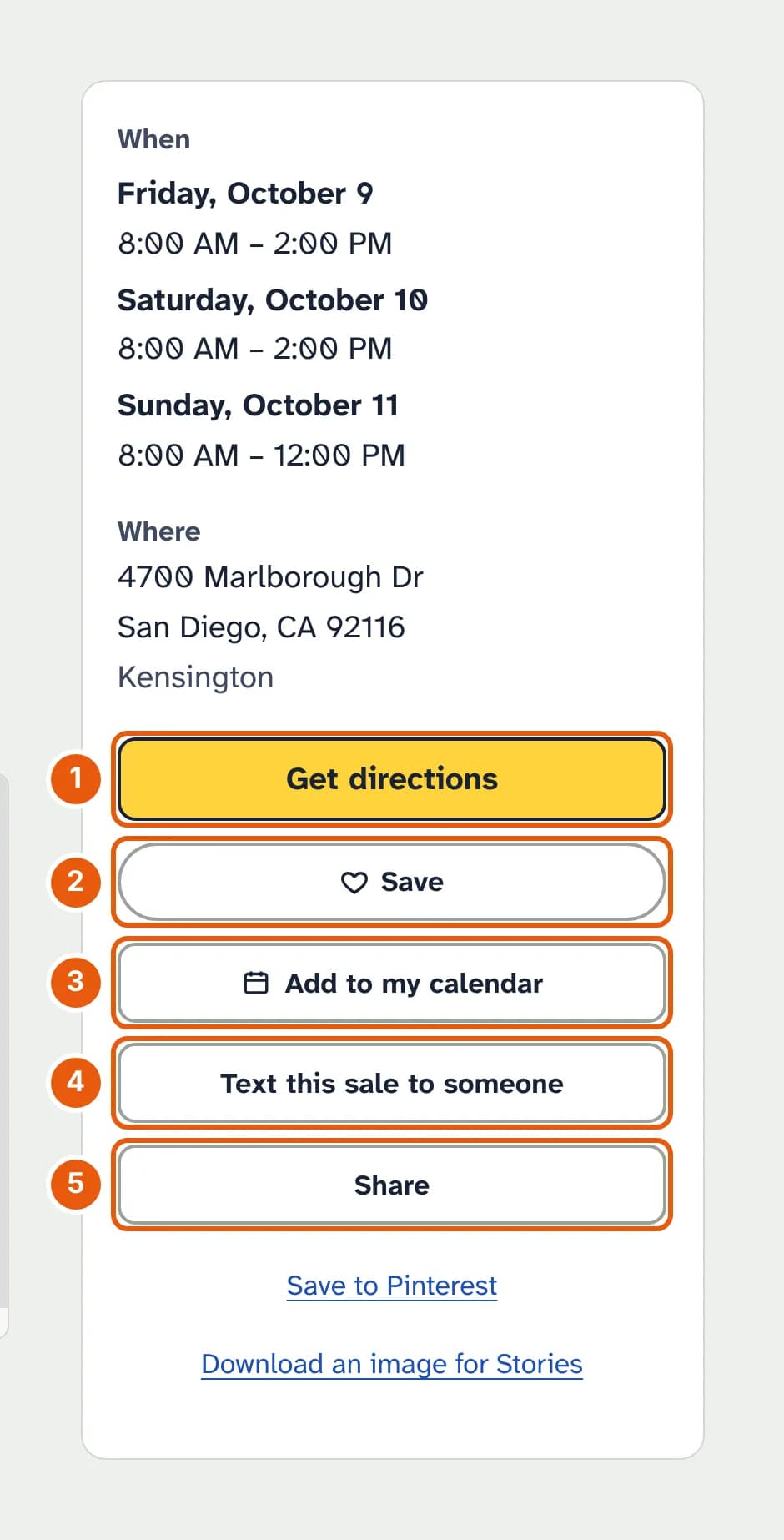
- Get directions opens your phone's maps app (Apple Maps on an iPhone or iPad, Google Maps elsewhere).
- Save keeps the sale in your saved sales and emails you the day before it starts (how saving works).
- Add to my calendar downloads a calendar entry that reminds you the night before and an hour before it opens.
- Text this sale to someone opens a text message with the sale's link (on a computer it copies the link).
- Share opens your phone's share menu.
Some sales say Address not released yet: the organizer hasn't published the street address, which usually appears a day or two before the sale. If a sale's details are wrong or it's over, use Report a problem with this listing at the bottom of its page.